
Inviting Your Team
You can add property managers, support agents, and other team members to your Enhanced Rentals workspace. Each user signs in with their own credentials and can handle guest escalations and support cases.
Estimated time: 2 minutes per user
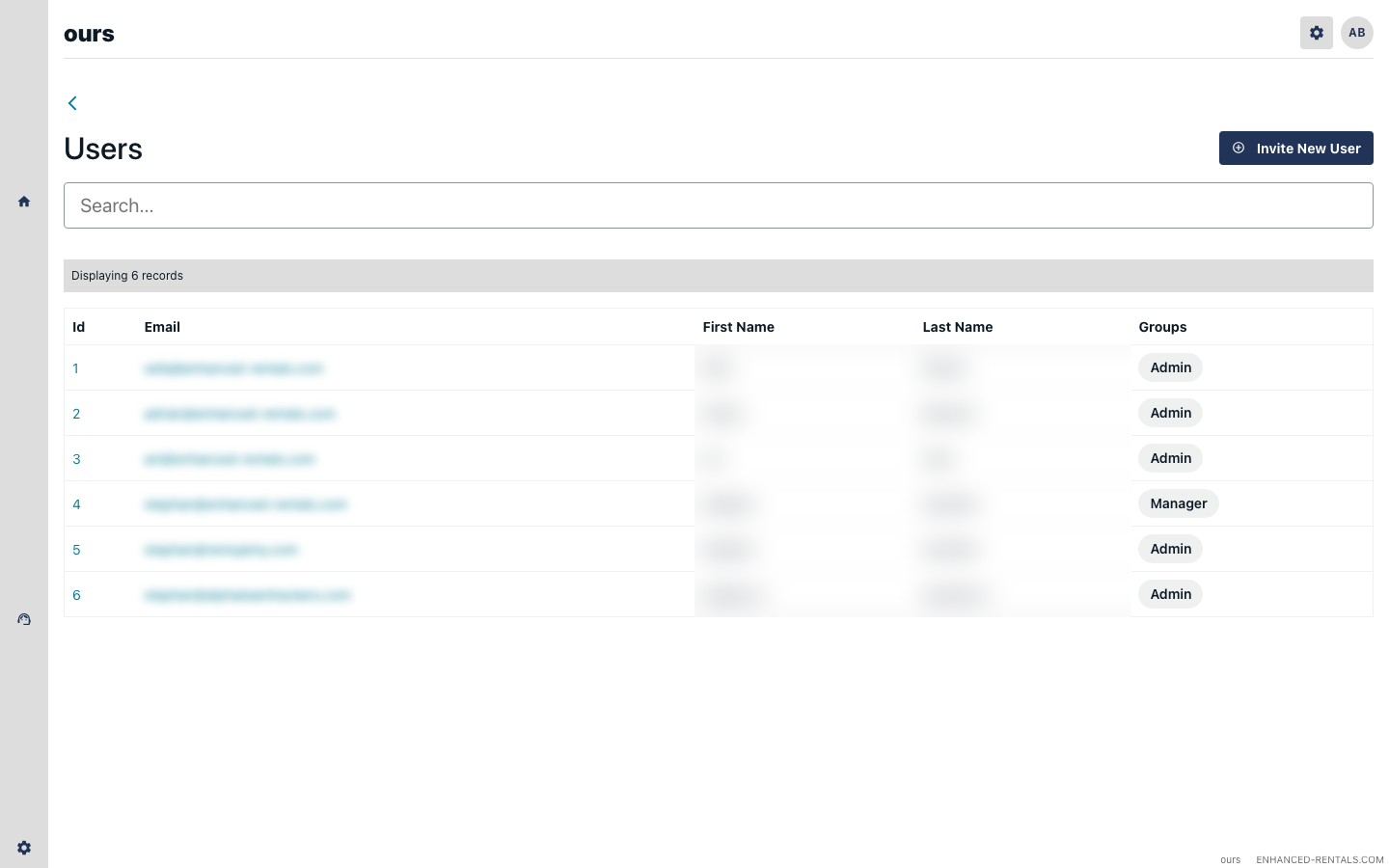
Open the Users settings page
In the left sidebar, go to Settings → Users. You will see a list of everyone who currently has access to your workspace.
Invite a new user
Click Invite User. Enter the team member's email address and select their role.
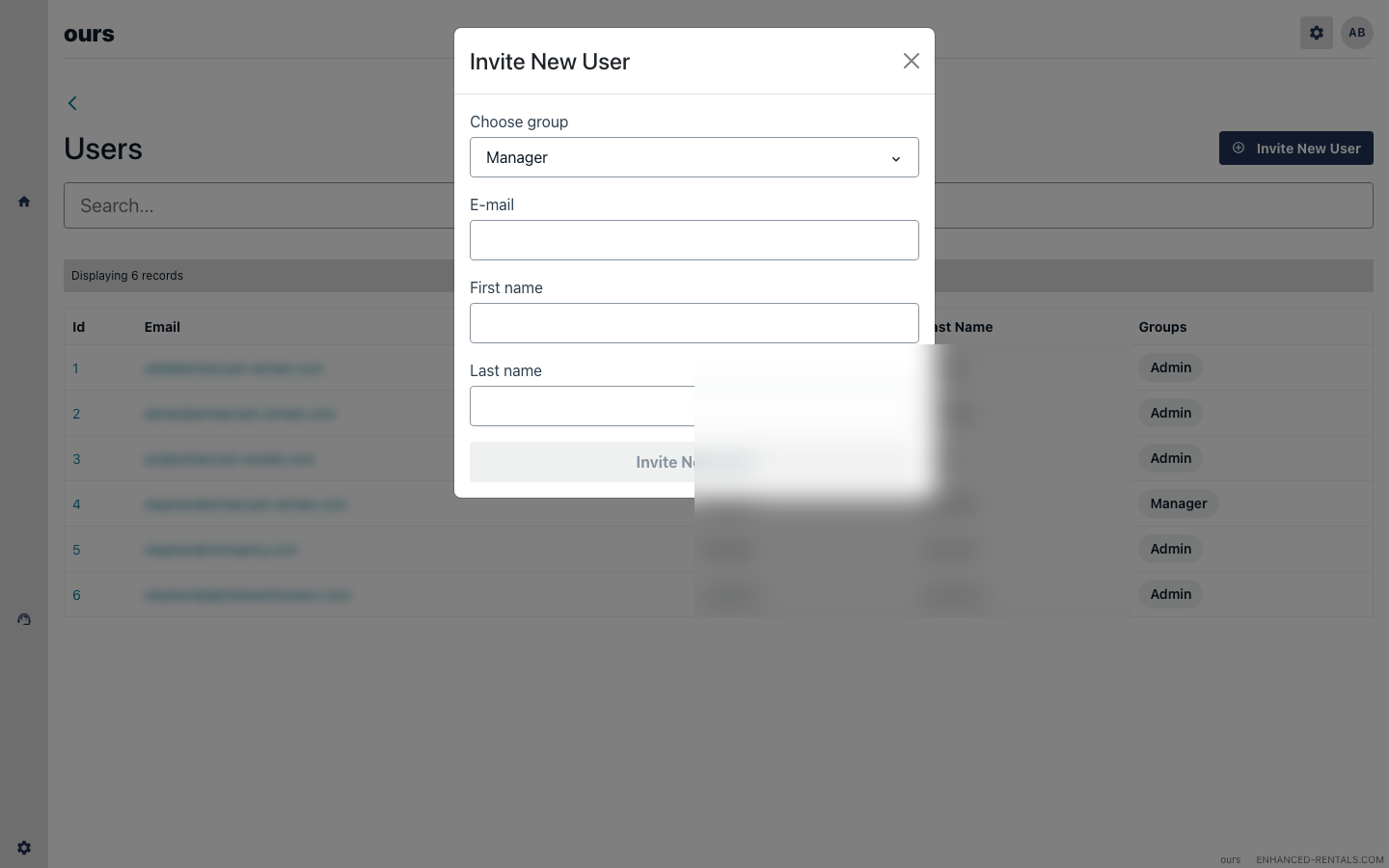
Available roles:
- Admin — full access to all settings, integrations, and configuration. Can invite other users.
- Manager — can view and respond to guest escalations and support cases, but cannot change settings or integrations.
The user receives an invitation email
After you send the invitation, the team member will receive an email with a link to set up their account. The link expires after 24 hours.
The user signs in
Once they click the link in the invitation email, they will be prompted to set a password and complete their profile. After that, they can sign in to your-workspace.enhanced-rentals.com using their email and password.
Remove a user when needed
To revoke access, go to Settings → Users, find the user, and click Remove. Their access is revoked immediately — they will be signed out on their next request.
Troubleshooting
The invitation email was not received
Check the spam or junk folder. Invitations come from noreply@enhanced-rentals.com. If still missing, resend the invite from the Users page or contact support.
The invitation link expired
Invitation links expire after 24 hours. Go to Settings → Users and resend the invitation.
A team member cannot see certain features
Manager-role users have limited access by design. If they need access to settings or integrations, an Admin must change their role to Admin from the Users page.