
Hiring an AI Colleague
An AI Colleague handles incoming guest messages and calls automatically — answering common questions, providing check-in instructions, and escalating to your team when needed. You don't build one from scratch or write a prompt: you hire a ready-made role from the catalog and fill in your business details. This guide walks you through it.
Estimated time: 5 minutes
Before you start
- •For a Guest Relations colleague, you have connected Hostaway and your listings are synced. See Connecting Enhanced Rentals to Hostaway.
- •You have Admin access in your Enhanced Rentals workspace.
Open AI Colleagues
In the left sidebar, under AI Agents, click AI Colleagues. You will see every colleague you've already hired for your workspace.
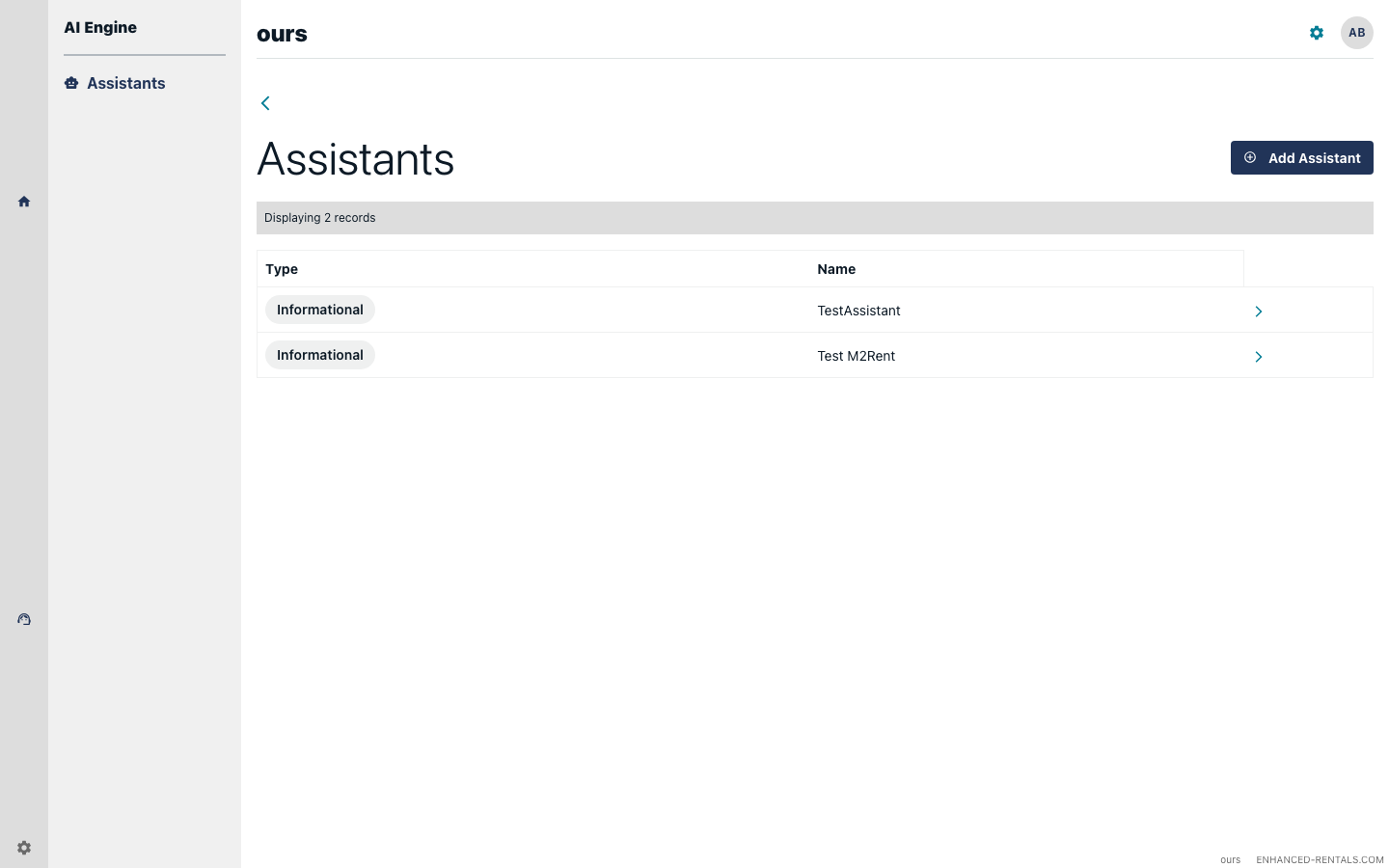
Hire a colleague
Click Hire a colleague in the top-right corner. A catalog of ready-made roles opens — Guest Relations, Sales, Personal Receptionist, Internal Team Ops, and more, depending on your plan. Pick the one that matches the job you want done.
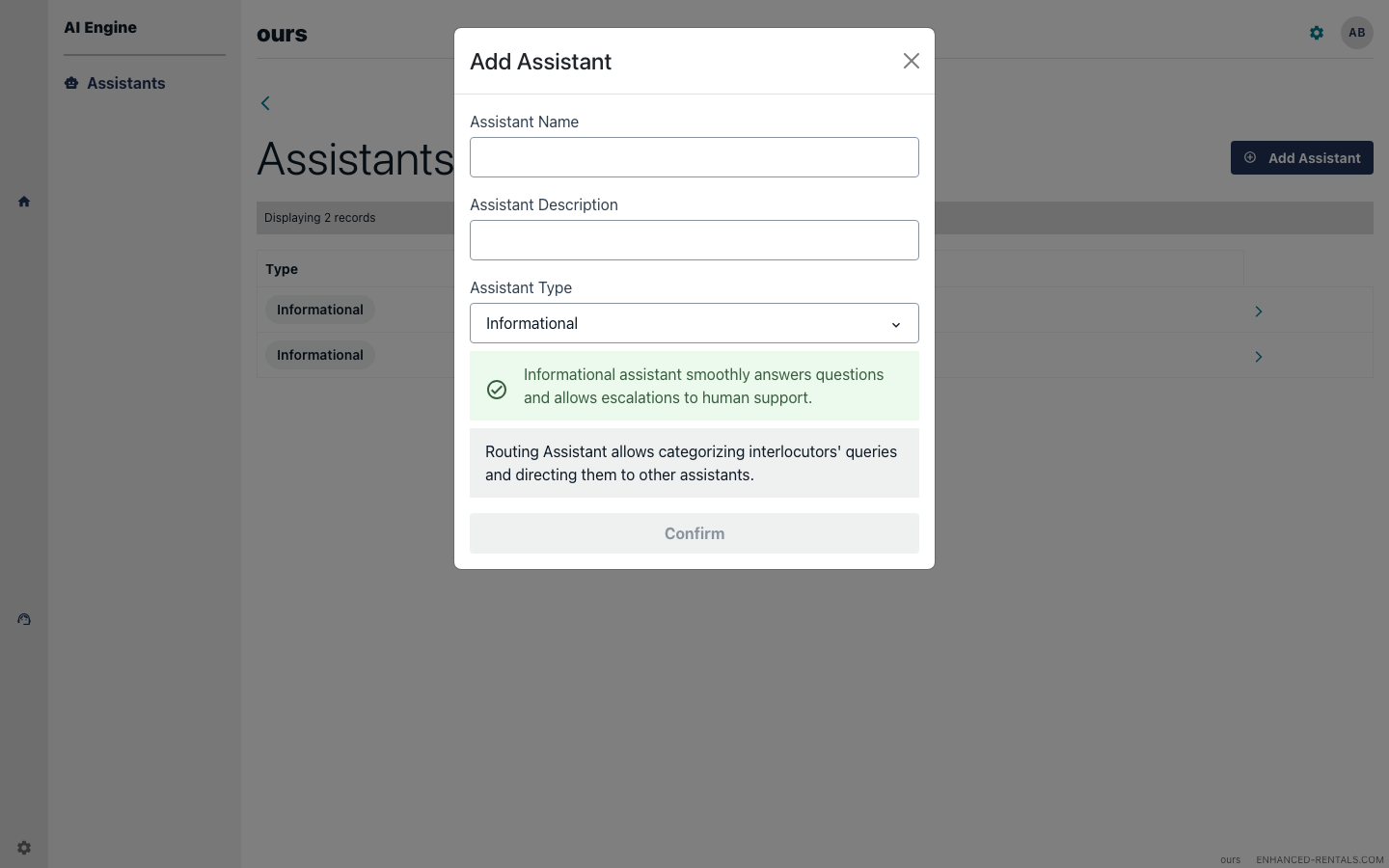
Name your colleague
The name is pre-filled from the role you picked (e.g. Guest Relations) — edit it to something you'll recognise, then confirm. For guest-facing colleagues, this name can appear in messages sent to guests.
Fill in your business details
A hired colleague is managed: it runs on an expert playbook we build and maintain, so there's no prompt to write. Instead, the Instructions tab shows a short Your details form — structured fields like your company name, check-in / check-out times, and access instructions. Fill those in and save.
The colleague combines those details with two things automatically: live reservation and listing data (fetched fresh on every conversation and matched to the guest by their phone number or message thread) and your knowledge base. The Instructions tab also shows a plain-English How this colleague behaves summary and a Live data panel so you can see exactly what it reads.
Enable, set escalation, and test
Toggle the colleague to Enabled on its detail page. Disabled colleagues are skipped — useful for pausing one without losing its configuration.
If the colleague answers a voice hotline and you want it to be able to transfer callers to a human, also enable Allow escalations to human agent. When it is off, the colleague handles all calls itself and won't offer to transfer — right for self-contained lines (e.g. demo or FAQ-only hotlines).
To test, send a message through your Hostaway channel (e.g. Airbnb or Booking.com) for a matching reservation, or call the hotline. You should see an automated reply shortly after.
Troubleshooting
The colleague is not replying to guest messages
Ensure the colleague is enabled, and if you use filters, that they match the reservation you're testing with. Also confirm that Hostaway webhooks are registered — go to Settings → Integrations → PMS and check the webhook status for your Hostaway connection.
The colleague replies to every message, including staff messages
A colleague only replies to messages sent by guests. Internal notes and messages sent by your team in Hostaway are filtered out automatically.
I want to pause the colleague temporarily
Open the colleague's detail page and toggle it to Disabled. It will stop replying immediately. Re-enable it at any time.