
Slack Notifications for Escalations
When a guest conversation is escalated to your team, Enhanced Rentals can post a message to a Slack channel in real time — with a direct link to the escalation, the guest's name, and the property. This means your whole team sees it the moment it happens, without anyone having to check a dashboard.
Estimated time: 5–10 minutes
Before you start
- •You have a Slack workspace with permission to install apps or create incoming webhooks.
- •You have Admin access in your Enhanced Rentals workspace.
- •You have (or can create) a dedicated Slack channel for escalation alerts — for example, #guest-escalations.
Create a Slack app and enable Incoming Webhooks
Go to api.slack.com/apps and click Create New App → From scratch. Give it a name (e.g. Enhanced Rentals) and select your workspace.
Once created, go to Incoming Webhooks in the left sidebar and toggle Activate Incoming Webhooks to on.
Add a webhook to your escalations channel
Scroll to the bottom of the Incoming Webhooks page and click Add New Webhook to Workspace.
Select the Slack channel where escalation alerts should be posted (e.g. #guest-escalations) and click Allow.
Slack will generate a webhook URL. It looks like:
https://hooks.slack.com/services/T00000000/B00000000/XXXXXXXXXXXXXXXXXXXXXXXX
Open the Webhooks page in Enhanced Rentals
In your Enhanced Rentals workspace, navigate to Settings → Integrations → Webhooks. This page lists all outgoing webhooks configured for your workspace.
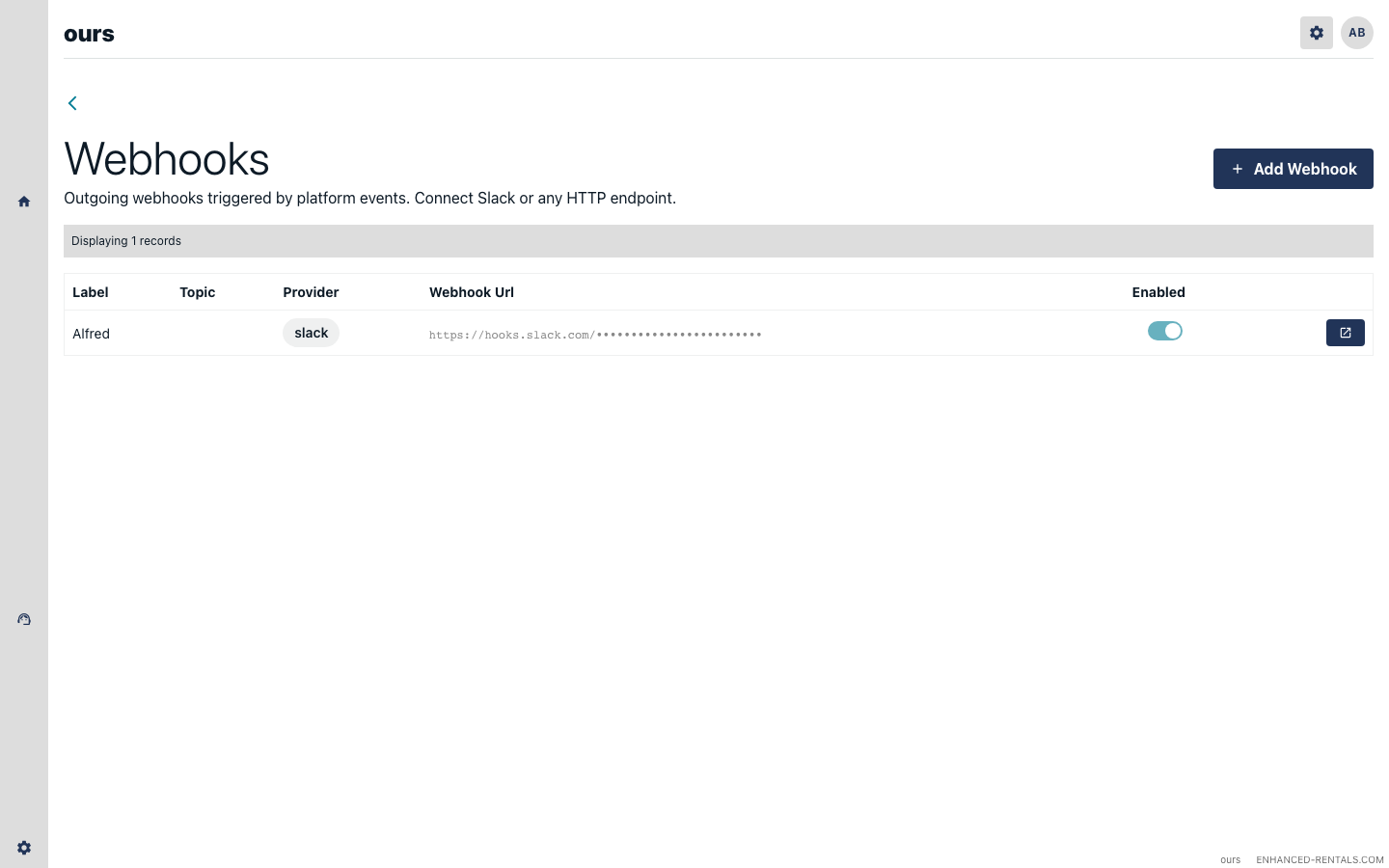
Click + Add Webhook.
Configure the escalation webhook
Fill in the form as follows:
- Label — a name you will recognise, e.g. Slack — Escalations.
- Topic — select Escalations. This fires the webhook every time a guest conversation is escalated to your team.
- Provider — select Slack.
- Webhook URL — paste the URL you copied from Slack in Step 2.
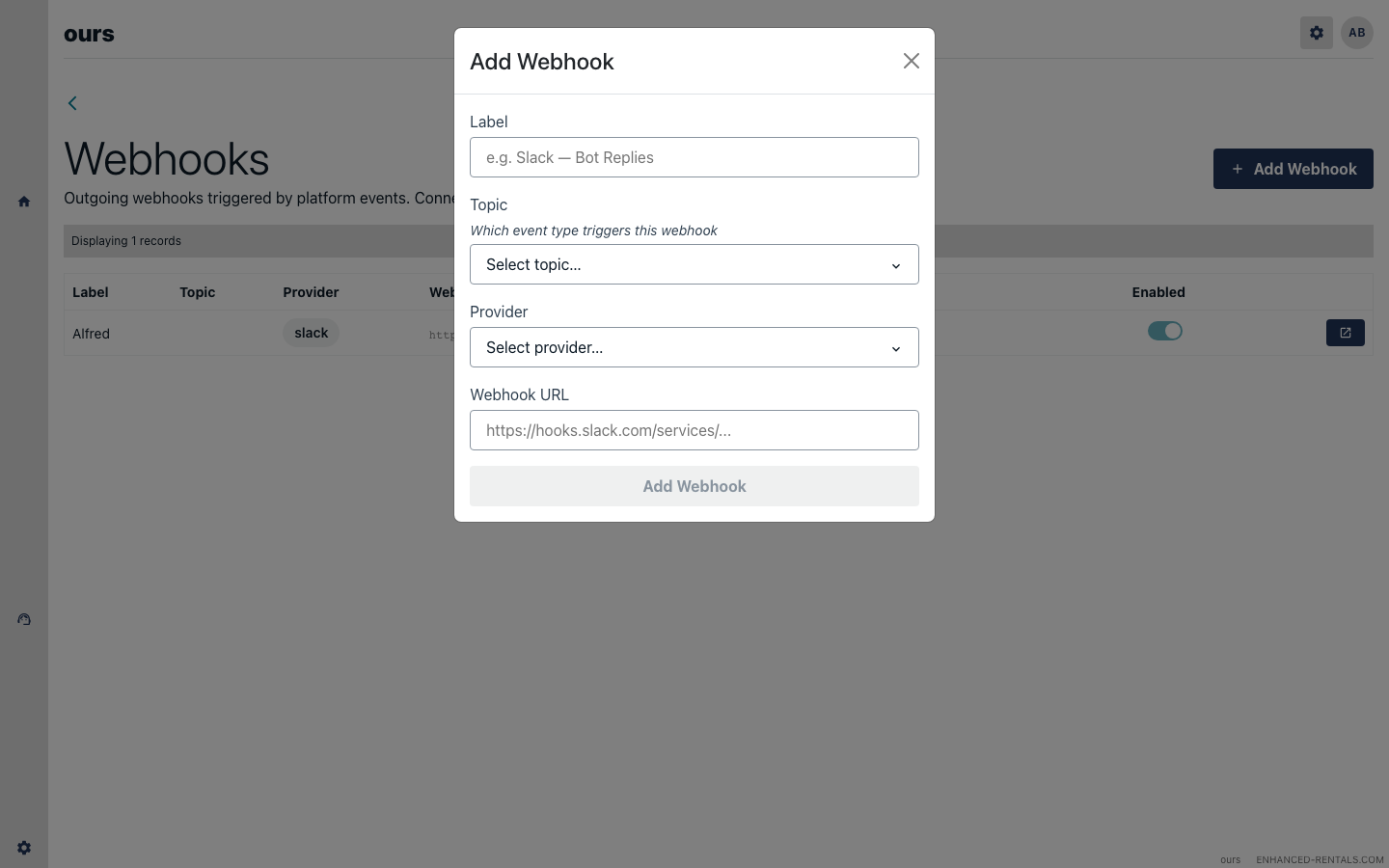
Click Add Webhook. The webhook will appear in the list as enabled.
Test it with a real escalation
The easiest way to test is to trigger an escalation from a guest conversation. Navigate to an active reservation in Hostaway, send a message as a guest that includes a phrase your AI Colleague will escalate (e.g. “I need to speak to a human”).
Within a few seconds, a message should appear in your Slack channel with:
- The guest's name and property.
- A summary of the conversation.
- A direct link to the escalation in Enhanced Rentals, so any team member can click through and respond immediately.
Add more topics (optional)
You can create additional webhooks for other event types using the same Slack app — just add another incoming webhook pointed at a different channel (or the same one), and register it in Enhanced Rentals with a different topic. Common setups:
- Bot Replies — log every automated reply your AI Colleague sends, useful for QA and auditing.
- Call Logs — post a summary and transcript link every time a guest calls your hotline.
- Bot Errors — alert your team when the AI Colleague fails to process a message.
Troubleshooting
No message appears in Slack after an escalation
Check that the webhook is Enabled on the Webhooks list page (the toggle should be on). Also verify the webhook URL was copied correctly from Slack — even a single missing character will cause delivery failures.
Slack shows “This app is not allowed to post here”
The webhook was generated for a specific channel. If the channel was deleted or the app was removed, generate a new incoming webhook in Slack and update the URL in Enhanced Rentals.
I want to disable notifications temporarily
Click the webhook in the Webhooks list to open the edit view, then toggle Enabled off. The webhook configuration is preserved and can be re-enabled at any time.